

Editing an AI song comes in two kinds. Cuts and fades keep the audio you already have, and any audio editor can do them. Rewriting a section or extending the song needs the AI to generate new audio. On RaoMusic both sit in the song's ⋮ menu: Clip (Trim, Remove Section, fades) at 2 credits each, and Edit (Replace Section, Extend) at a normal run price, 20 credits on Rao v1.0 for two takes.
Last checked: November 6, 2026
Which edit fixes which problem?
Pick the tool by what is wrong with the song. Trim and Remove Section keep the audio they retain exactly as it was, Fade In and Fade Out only change the volume, and Adjust Speed changes the tempo. Replace Section and Extend send the song back to the model. For tempo, choose Clip > Adjust Speed, set 0.5x to 1.5x and leave Preserve pitch on to keep the key.
| Problem | Tool (menu) | What happens to the audio | Credits |
|---|---|---|---|
| Too long, or you need a short version | Trim (Clip) | Keeps the part you select | 2 |
| A verse or break you don't want | Remove Section (Clip) | Cuts it out and joins the two sides | 2 |
| Abrupt start or ending | Fade In / Fade Out (Clip) | Ramps the volume over 0.5 to 10 s, length unchanged | 2 |
| Tempo too fast or too slow | Adjust Speed (Clip) | 0.5x to 1.5x; Preserve pitch keeps the key | 2 |
| One wrong word or line | Replace Section (Edit) | Regenerates 10 to 60 s with your new lyrics | Price of the song's model (20 on Rao v1.0) |
| Song ends too soon | Extend (Edit) | Continues from a point you pick | Price of the model you pick |
| Wrong voice, genre or mood through the whole song | None: regenerate | These edits aren't meant to change the singer | A new run |
Where are the edit tools?
- Open Create and find the song in your list.
- Click the ⋮ button at the end of the song's row.
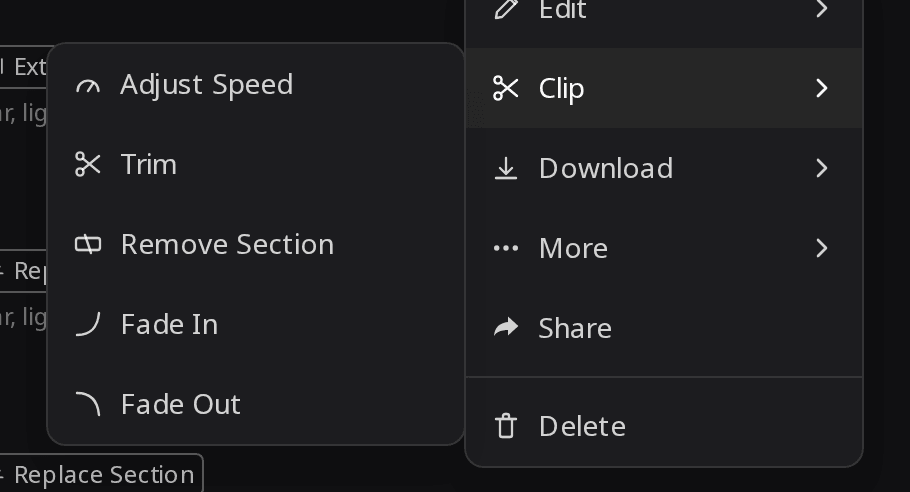
- Hover Clip for Adjust Speed, Trim, Remove Section, Fade In and Fade Out, or hover Edit for Extend and Replace Section.
- Set the range or fade length in the window that opens and confirm. The edited version appears in your list as a new song; the original stays as it was.
How did we test these edits?
On November 6, 2026 we made one song on Rao v1.0 in Custom mode with our own lyrics (full lyrics and settings are at the end), used the same source take for every edit in this guide: one run each. Times are from checking the job every 5 seconds. The short listening note under a clip describes what that file sounds like; press play to judge for yourself.
Original song · Rao v1.0 · 2:04
Listening note: Jangly guitar over light drums and bass, as asked. The lead sounds female and higher than the male vocal the style asked for, and the unused second take did the same. The tools below aren't voice-replacement controls, so if the singer is wrong for your project, regenerate instead of editing.
How do I make a short version with Trim and Fade Out?
Choose Clip > Trim, drag the range to keep the part you want and confirm. A trim that ends in the middle of the music stops dead, so run Fade Out on the trimmed version afterwards. We kept 0:00 to 0:48 (intro, first verse and chorus), then added a 4-second fade.
Trim only
Listening note: The music cuts off mid-bar with no decay. Don't use it as an ending without a fade.
Trim + Fade Out
Listening note: The held note and guitar fade out smoothly over the last four seconds, so it plays as a finished 48-second version for an intro or a short video.
Trim keeps the selected audio exactly as it was, and Fade Out only lowers the volume over the last 4 seconds. If you would rather get a clean ending straight from the generator, see the guide on how to end an AI song.
How do I cut a section out of the middle?
Use Clip > Remove Section and select the part to delete. Choose edges at matching beat positions, often the starts of two sections, then preview the join. We removed all of Verse 2, from 0:56.9 (where it starts) to 1:15.6 (where the second chorus starts).
Remove Section
Listening note: Verse 2 is gone and the song moves into the second chorus at 0:57 on the beat, with no skip or click. Use it as a shorter radio edit.
Everything before and after the cut is the original audio, and the timed lyrics shift with it, so the lines in the removed part simply disappear from the new version. If your cut lands mid-bar and you hear a stumble, go back to the original in your list and run Remove Section again with edges that sit on section starts.
How do I change one line without remaking the song?
Use Edit > Replace Section. Tap the lyric lines you want to redo (the selection must be 10 to 60 seconds and no more than half the song), type the new words, and generate. We changed only the first line of Verse 2, from "Tuesday rain on the station stairs" to "Friday snow on the station stairs", and selected the whole verse so the new line had room to sit naturally.
Replace Section, take 1
Listening note: Sings "Friday snow on the station stairs", and the joins at 0:57 and 1:16 are smooth, with the same voice and arrangement around them. It works as a straight swap for the old verse.
Replace Section, take 2
Listening note: Also sings the new line with smooth joins and the same voice. Both takes work; keep the one whose verse you like better.
Both takes kept the song's original length. Our audio comparison found differences outside the selected verse in both takes, although the voice and arrangement sound consistent. Keep the original, listen through the full result rather than only the changed verse, and only then move on to cuts.
To rewrite lyrics in a song you recorded or made elsewhere, upload it on the change song lyrics page and select the section there.
How do I make an AI song longer?
Use Edit > Extend, drag to the point where the new part should start, add lyrics for it (or leave them blank) and generate. The result includes the earlier song plus the new ending, re-rendered as one file, so listen to the earlier part too before you replace the original. We extended from 1:38.5, right after the second chorus, with a new bridge and a final chorus.
Extend, take 1
Listening note: The join at 1:38 is smooth, the bridge and final chorus are sung as written, and the song rings out naturally. Use it as is for the full-length version.
Extend, take 2
Listening note: Same smooth join and accurate bridge and chorus, ending on a short instrumental ring-out. Our level check found the music falls to near silence in about half a second, about 2 seconds before the file ends. If that stop sounds sudden where you use the song, add a Fade Out.
The AI music extender does the same job on an uploaded MP3 or WAV.
In what order should I make the edits?
Do the edits that regenerate audio first, and the cuts last.
- Replace Section and Extend first. Both generate new audio, and our comparisons found changes outside the selected part, so audition each full result and keep the original. Replace Section isn't offered on versions made with Trim, Remove Section, the fades or Adjust Speed.
- Trim and Remove Section next. They keep the audio they retain, so nothing you approved in step one changes. If you need a WAV, download it from the original Rao or Suno song first: versions made with the Clip tools download as MP3 only.
- Fade Out last, on the final length, so the fade lands on the real ending.
- Move to a DAW when you need to fix one instrument or rebalance the mix. The guide on getting AI song stems into a DAW covers that step.
What lyrics and settings did we use?
Original song: Rao v1.0, Custom mode, Vocal Gender set to male, Duration left on Auto. Style: warm indie pop, jangly electric guitar, light drums, bass, male lead vocal, 100 BPM. Title: Last Train Home.
[Verse 1]
Streetlights hum on Carver Lane
I count the stops on the rattling train
Your message glowing in my hand
Says the kettle's on, the porch light's on
[Chorus]
Last train home, I'm almost there
Windows fogged with city air
Hold the door, don't turn the light down low
I'm on the last train home
[Verse 2]
Tuesday rain on the station stairs
A paper cup, two empty chairs
I hum the song you used to know
The one we danced to years ago
[Chorus]
Last train home, I'm almost there
Windows fogged with city air
Hold the door, don't turn the light down low
I'm on the last train home
[Outro]
I'm on the last train home
[Outro]
I'm on the last train home
Lyrics typed for Extend (from 1:38.5):
[Bridge]
The city fades behind the glass
I let the empty platforms pass
[Chorus]
Last train home, I'm almost there
Windows fogged with city air
Hold the door, don't turn the light down low
I'm on the last train home
| Edit | Settings | Time | Result length |
|---|---|---|---|
| Original | Rao v1.0, Custom mode | n/a | 2:04 (the take used for every edit) |
| Trim | keep 0:00–0:48 | about 11 s | 0:48 |
| Fade Out | 4 s, on the trimmed version | done by the first 5-second check | 0:48 |
| Remove Section | cut 0:56.9–1:15.6 | about 14 s | 1:46 |
| Replace Section | 0:56.9–1:15.6, first line of Verse 2 changed | about 77 s | 2:04 |
| Extend | from 1:38.5, Rao v1.0, bridge + chorus | about 65 s | about 2:33 |
Frequently Asked Questions
Yes, upload the MP3 or WAV to your RaoMusic library first. The Clip tools work on any finished song, and Replace Section works on an upload once its lyrics are timed to the audio.
Each Clip edit is saved as a new song with a tag added to the title: (Trimmed), (Cut), (Fade In) or (Fade Out). A trim that you then fade carries both tags.
Yes. Every edit is a separate file in your library and counts toward your plan's storage, so delete the versions you don't keep.
Credits for a failed Clip edit are refunded automatically, and you can run it again.
Suno's help center says Replace Section is available to Pro and Premier subscribers, and that Crop cuts off the beginning or end of a song (checked November 6, 2026).