

To add vocals to an instrumental with AI, give the tool your track, your lyrics and a short style description, and it returns a sung version. On RaoMusic that tool is Add Vocals: subscribers open it from the song menu, and a run on Suno v6 costs 30 credits for two takes. Describe the instrumental accurately in the style text. With a matching description the tempo and length can stay the same, while a different genre can replace the backing.
Last checked: October 30, 2026
What do you need before you start?
- An instrumental with no lead vocal. Generate one with Instrumental turned on, or upload your own MP3, WAV, M4A, AAC or OGG file of up to 50 MB. RaoMusic checks each upload and only offers Add Vocals on files it hears as instrumental. If your beat still has a vocal on it, the vocal remover can split off an instrumental version for you to work from.
- A file that isn't FLAC. FLAC uploads can't be used for Add Vocals, so convert the file to WAV or MP3 before you upload it.
- Finished lyrics of up to 5,000 characters. Lyrics are required, and section tags such as [Verse 1] and [Chorus] help steer the structure. For tag and line-length tips, see the guide to making a song from your own lyrics.
- A subscription. Add Vocals is a subscriber feature, and each run takes 20 or 30 credits from your RaoMusic balance depending on the version you pick.
How do I add vocals to an instrumental on RaoMusic?
On Suno, Add Vocals follows the same order: pick the instrumental, enter lyrics, describe the style, then create. On RaoMusic the steps are:
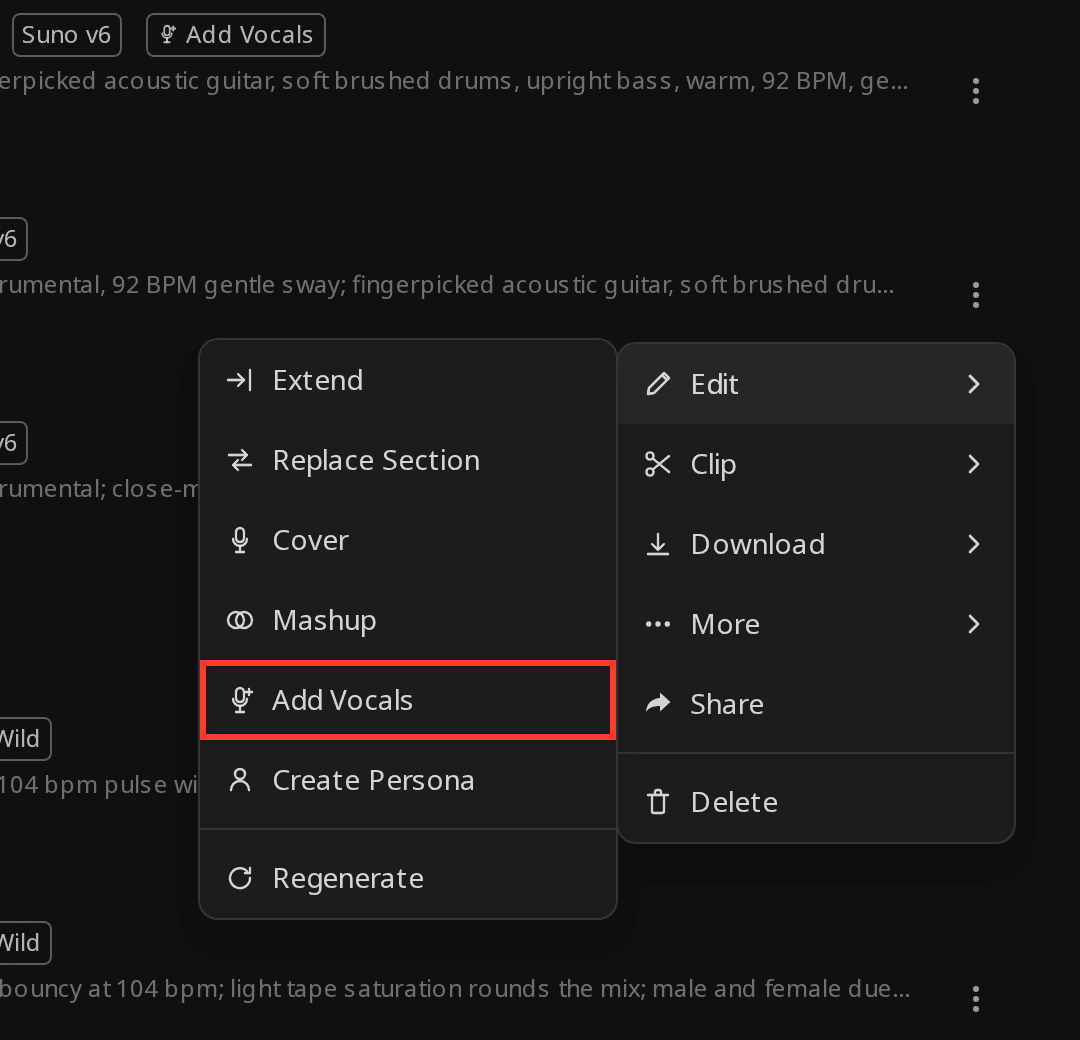
- Open the song menu. In your song list on the Create page, click the ⋮ menu on the instrumental, go to Edit and choose Add Vocals. Uploaded files appear in the same list, so the steps are identical for your own beat.
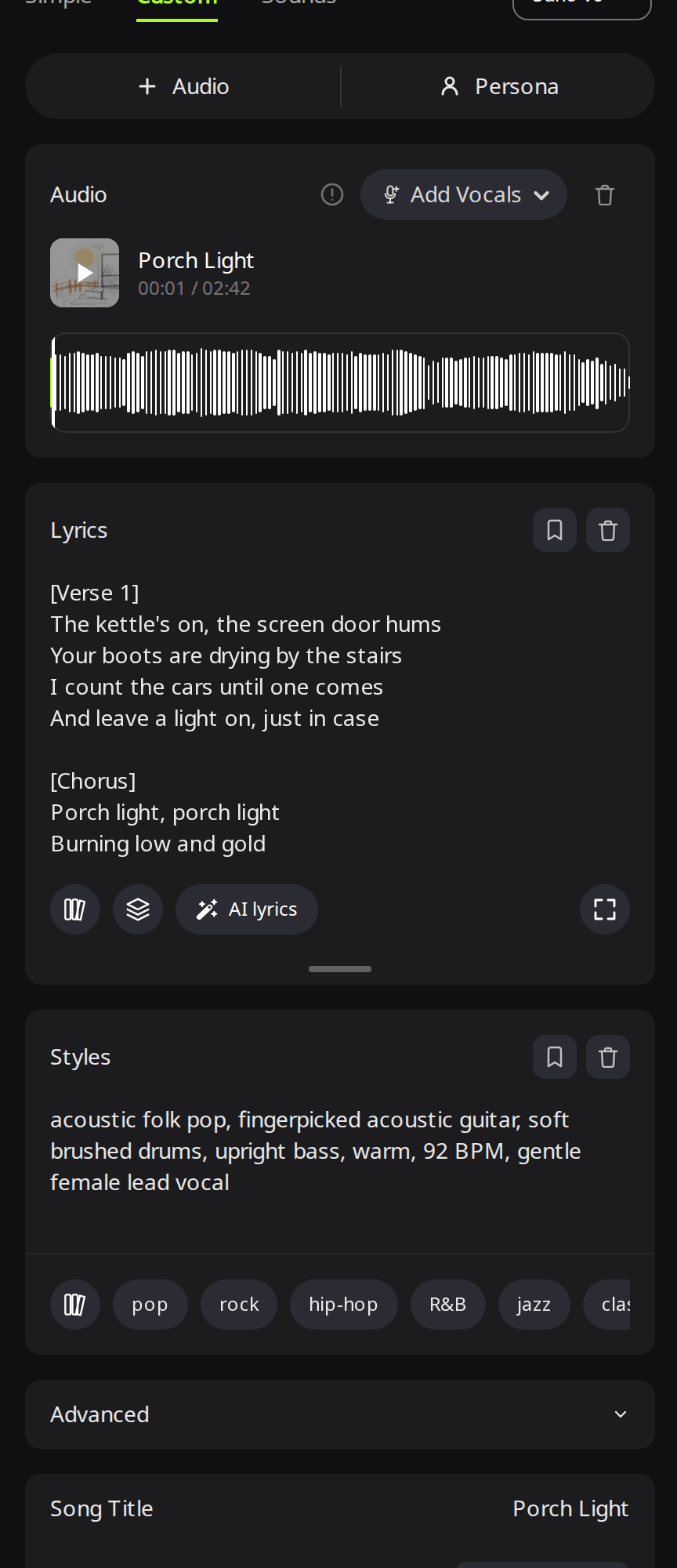
- Paste your lyrics into Lyrics. If you don't have lyrics yet, the AI lyrics button inside the box drafts some, or you can write them with the AI lyrics generator and paste them in.
- Describe the instrumental first in Styles, then the voice. Name the genre, the main instruments and the tempo of the track you already have, and finish with the kind of singer you want.
- Pick a voice under Advanced. Set Vocal Gender to Male or Female if you want one or the other.
- Click Generate. The results appear in your song list with an Add Vocals tag.
What does the before and after sound like?
Original instrumental · Suno v6 · Custom mode · Instrumental on · Styles: acoustic folk pop, fingerpicked acoustic guitar, soft brushed drums, upright bass, warm, 92 BPM
Listening note: Mostly solo fingerpicked guitar; the brushed drums and upright bass named in the style didn't come through. That works as a bed for a voice. If you want a full band under the vocal, regenerate the instrumental before you add vocals.
Add Vocals, matching style · Suno v6 · Styles: acoustic folk pop, fingerpicked acoustic guitar, soft brushed drums, upright bass, warm, 92 BPM, gentle female lead vocal · Vocal Gender: Female
Take 1
Listening note: Every line is sung over the acoustic backing, but the overly breathy vocal feels separate from the guitar, the words sound muffled, and there is noticeable phasing in the high end. That keeps it from working as a finished track; use take 2 instead.
Take 2
Listening note: A warm, breathy female vocal sings every line cleanly over the acoustic backing. This take works as it is.
What does AI do to your instrumental when it adds vocals?
Add Vocals generates a new full mix with the voice in it, so the audio of your original file isn't reused as is. With a matching style description, both vocal versions kept the instrumental's length and tempo, yet the loud attacks in the new mixes, such as guitar plucks, don't land at the same moments as in the original file. They line up with it no better than a second instrumental generated separately from the same prompt.
| File | Styles | Length | Tempo (measured) | Hits line up with the original? |
|---|---|---|---|---|
| Original instrumental | Acoustic folk, 92 BPM | 2:42 | About 92 BPM | Source file |
| Second instrumental take, same prompt | Acoustic folk, 92 BPM | 2:32 | About 91 BPM | No |
| Add Vocals, matching style, take 1 | Acoustic folk + female vocal | 2:42 | About 92 BPM | No |
| Add Vocals, matching style, take 2 | Acoustic folk + female vocal | 2:42 | About 92 BPM | No |
| Add Vocals, synth-pop style, take 1 | Synth-pop, 120 BPM | 2:42 | About 128 BPM | No |
| Add Vocals, synth-pop style, take 2 | Synth-pop, 120 BPM | 2:42 | About 125 BPM | No |
If you only need a finished song, use the new mix as it is. If your exact instrumental has to stay, for example a beat you license out or a track already cut into a video, split the vocal from the new version with a stem separator and place it over your original in a DAW. Because the timing doesn't match the original, plan to nudge or stretch parts of the vocal into place.
What happens if the style text doesn't match the instrumental?
When Styles describes a different genre from the instrumental, the style text can control the result more than the audio does. Asking for synth-pop over the acoustic instrumental above gave two upbeat synth-pop songs with electronic drums at a much higher tempo. The fingerpicked guitar was gone and no acoustic arrangement remained, though both takes kept the original length.
Add Vocals, synth-pop style · Suno v6 · Styles: upbeat synth-pop, punchy electronic drums, 120 BPM, bright female lead vocal · Vocal Gender: Female
Take 1
Listening note: Glossy synth-pop with electronic drums that matches the style text; none of the acoustic instrumental is left. It works as a polished demo of the lyrics in a new genre.
Take 2
Listening note: Upbeat synth-pop with punchy electronic percussion and a bright vocal, again with no trace of the original guitar. Either take works if a synth-pop version is what you want.
Use a style like this on purpose only when you want your lyrics in a new genre and don't need the original backing. To stay close to your instrumental's genre and tempo, rewrite Styles so it describes what is already playing. Even with a matching description, the backing is a new performance.
How do you add vocals in Suno?
Suno's help center describes the same feature. Open your Library or a Workspace, open the (...) More Actions menu on an uploaded track or a generated instrumental, choose Add Vocals from the Remix options, enter your lyrics and click Create. The Suno Add Vocals help page says: "This beta feature is currently available exclusively to Pro and Premier users." Its advanced options include an Audio Strength slider that sets how closely the result follows your original instrumental, and Suno suggests describing the instrumental in the style box.
How did we test?
On October 30, 2026 we generated one instrumental on RaoMusic with Suno v6 (Custom mode, Instrumental on). That run returned two takes, and the first became the source. We then ran Add Vocals on it twice with Suno v6 and the same lyrics: once with Styles describing the instrumental, once with Styles describing synth-pop. Each run cost 30 credits and returned two takes. To compare timing, we decoded every file and checked where its strongest plucks and hits fall against the original. That gives the tempo and shows whether the hits line up with the original. We also kept the second instrumental take from the same prompt as a comparison, to show how far apart two separate performances of one prompt are. The short listening note under a clip describes what that file sounds like; press play to judge for yourself. The exact lyrics are under What lyrics did we use? below.
What lyrics did we use?
Both Add Vocals runs used these lyrics, pasted into Lyrics with the same line breaks.
[Verse 1]
The kettle's on, the screen door hums
Your boots are drying by the stairs
I count the cars until one comes
And leave a light on, just in case
[Chorus]
Porch light, porch light
Burning low and gold
Porch light, porch light
Keep the road from getting cold
[Verse 2]
The radio plays the same old song
The moths are dancing at the glass
I never minded waiting long
I know the miles will always pass
[Chorus]
Porch light, porch light
Burning low and gold
Porch light, porch light
Keep the road from getting cold
[Outro]
Leave it on, leave it on
Frequently Asked Questions
Leave Styles empty and RaoMusic reuses the instrumental's own style text. For an upload, that is the style RaoMusic detected when it checked the file.
Yes. Add Vocals results are Suno songs on RaoMusic, so Replace Section appears in their Edit menu, including results built on an uploaded beat. It redoes one section with new lyrics instead of the whole song.
Yes, with Add Instrumental. It sits in the same Edit menu but only appears on songs that have vocals, while Add Vocals only appears on instrumentals.
No. Add Vocals results built on an uploaded file aren't eligible for a RaoMusic license certificate.
Failed generations are refunded automatically, so a run that errors out doesn't use up your credits.