

To get an AI song's stems into a DAW (digital audio workstation), put each stem on its own audio track starting at bar 1, and keep the DAW from stretching them until you have checked they play together like the original. Only have the finished song? Split it first: on RaoMusic, Download > Stems in the song's menu gives 2 tracks for 20 credits or 12 for 70 on Rao and Suno songs, with an active subscription.
Last checked: October 25, 2026.
What are the steps in any DAW?
Put all the stem files in one folder (unzip the download if it came as a zip).
Put one stem on each audio track, all starting at bar 1.
Switch off anything that would stretch the stems or change the project tempo to match them. Each DAW section below names the setting.
Play from bar 1 and compare with the original song.
Keep the original tempo for this first pass. If you want a different tempo later, change all the stems together, never one stem alone.
Where do I get stems if I only have the finished song?
If you already have stem files, skip to your DAW's section below. If the tool that made your song offers a stem download, use that first. Otherwise you need to split the full mix. On RaoMusic there are three routes:
Songs you made on RaoMusic with Rao or Suno: Download > Stems in the song's menu, 2 tracks for 20 credits or 12 tracks for 70 credits, with an active subscription.
Songs made with other engines on RaoMusic: the same Stems option uses a different separator, priced at 5 credits per started minute of audio.
Audio from elsewhere that you own or have permission to use: the standalone Stem Separator splits vocals, drums, bass and other, plus piano and guitar in 6-stem mode, at 5 credits a minute, with MP3 or WAV output. The Vocal Remover makes a two-track version. Both standalone tools work on any plan.
How do I export stems from an AI song on RaoMusic?
Open Create and find the song in your library.
Click the three-dot menu on the song row, hover Download, then click Stems.
In the Separate Audio window, choose Vocal Separation ("Separate vocals and accompaniment into two tracks") or Multi-Stem Separation ("Separate vocals and instruments into multiple tracks"). Each option shows its price, and the window notes that the first separation may take a few minutes.
You can close the window. Separation continues in the background, and the menu shows a Separating badge.
When it is ready, open the window again, play each stem with its Solo and mute buttons, then click Download. You get one zip named after the song. Downloading a finished separation again does not charge more credits.
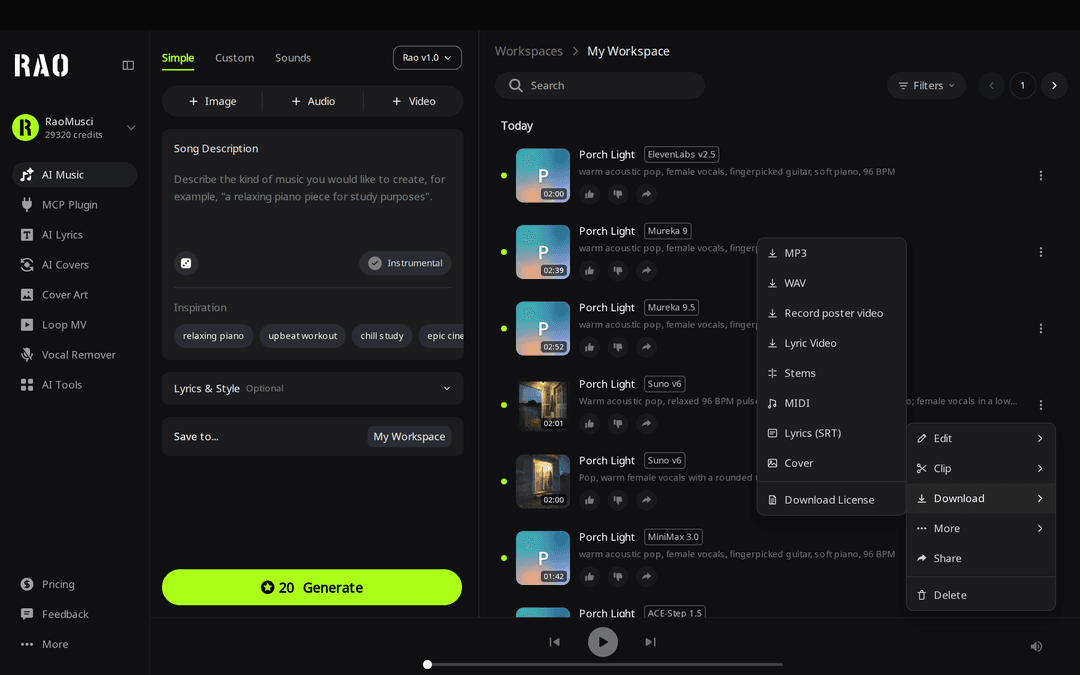
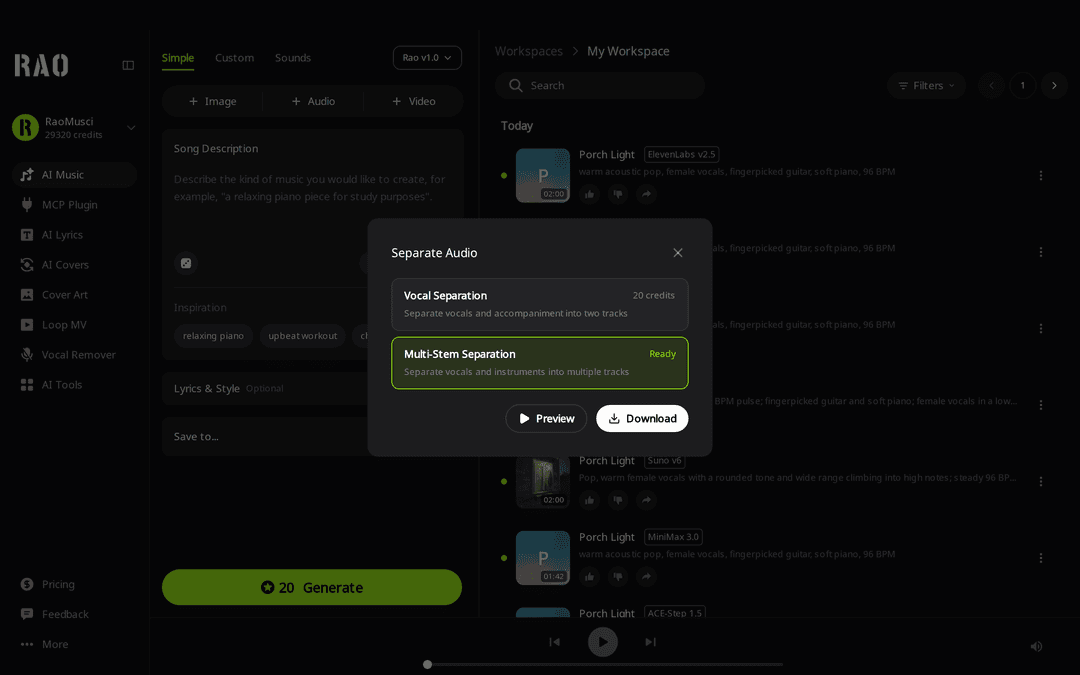
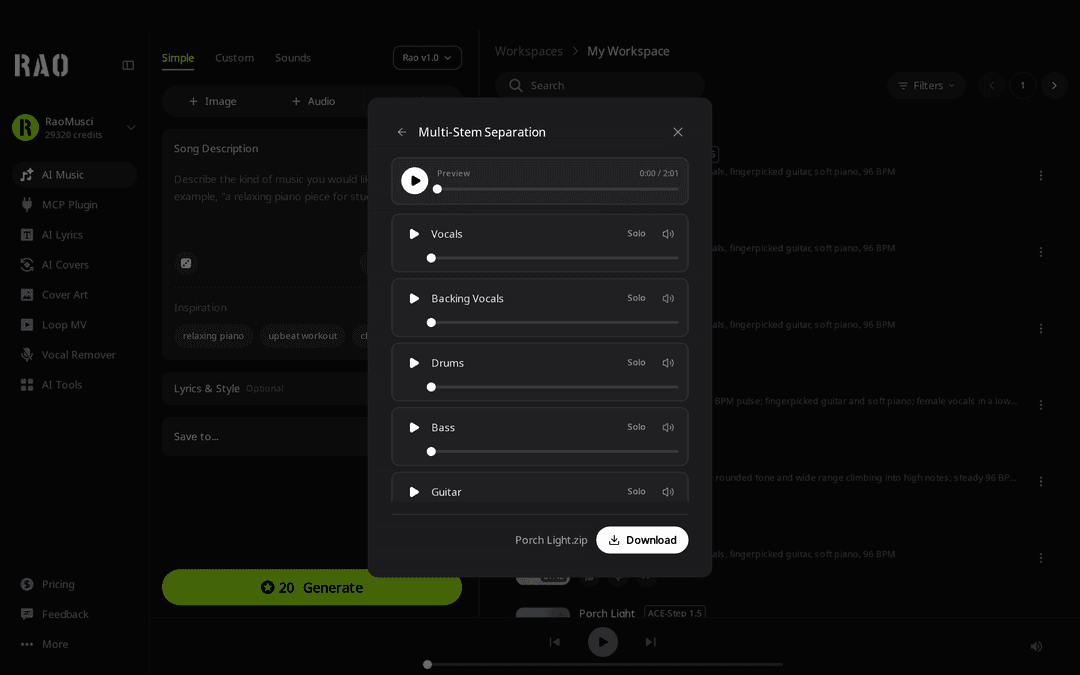
Test results: 12 MP3 stems from a 2:01 song
On October 25, 2026 we generated one song, "Porch Light", with the Suno v6 engine in Custom mode, using our own lyrics and this style:
warm acoustic pop, female vocals, fingerpicked guitar, soft piano, 96 BPM
The song is 2:01 long. We ran Multi-Stem Separation on it once: 70 credits were charged and the stems were ready about 3 minutes 20 seconds after we started. It returned 12 tracks: Vocals, Backing Vocals, Drums, Bass, Guitar, Keyboard, Percussion, Strings, Synth, FX, Brass and Woodwinds. The style did not mention brass or woodwinds, yet Brass and Woodwinds files were still returned.
We read each file's format, sample rate, length and size from its MP3 frame headers. We did not test playback inside a DAW.
| Property | What we found |
|---|---|
| Format | Stereo MP3 with variable bitrate, so file sizes differ even though the lengths match |
| Sample rate | 48 kHz on all 12 stems (the original song is also 48 kHz) |
| Length | 121.20 seconds, identical for all 12 |
| Size | 759 KB (Woodwinds) to 2,553 KB (Guitar), about 21 MB in total |
Our 12-stem download came as MP3 files. If you need WAV, the standalone Stem Separator offers WAV output. Converting an MP3 stem to WAV in your DAW gives you a WAV file, but it does not bring back detail removed by MP3 encoding.
Matching lengths mean the files take up the same stretch of the timeline. They don't prove the parts are in time with each other, so after importing, keep each file's start exactly where it is (don't trim the silence at the beginning) and play all the stems together against the original song. Compare the full mix with the isolated vocal and drums:
Full song (Suno v6, Custom mode)
Vocals stem
Drums stem
The 96 BPM in the style is the tempo we requested. Check the actual tempo in your DAW before you build anything on the grid.
How do I import AI stems into Ableton Live?
In Arrangement View, create one audio track per stem.
Drag each stem file onto its own track, starting at bar 1.
Switch Warp off on every stem clip. The Live manual on warping says Auto-Warp Long Samples "is enabled by default", and that "when the Warp switch is off, the sample plays at its original tempo, unaffected by the Set's current tempo."
Play from bar 1 and compare with the original song.
With Warp off, changing the Set tempo leaves the stems at their original speed. Making a whole multitrack song follow a new tempo is a bigger job than this guide covers; start with the warping chapter linked above.
How do I import AI stems into Logic Pro?
Before you import, click the middle of the Tempo display in the LCD and choose Keep Project Tempo, so the project tempo does not change to match the files. Apple describes the options in its guide to the Project Tempo mode.
Select all the stem files in Finder and drag them to the empty area below the existing tracks. In the Add Files to Tracks dialog, choose to create new tracks, so each stem lands on its own track (see Apple's guide to creating tracks with drag and drop).
Select all the new regions and, in the Region inspector, set Smart Tempo to Off. Apple's guide to the Smart Tempo setting says that with Off "the file tempo is ignored", while with On the region "is flexed to follow the project tempo and any tempo changes".
Check that every region starts at bar 1, then play it back against the original song.
Logic imports MP3 files directly, as described in Apple's guide to compressed audio.
How do I import AI stems into FL Studio?
Drag the stems from the Browser or your file manager onto the Playlist, not the Channel Rack. The FL Studio manual on Audio Clips says each sample dropped on the Playlist creates a new Audio Clip channel, while dropping on the Channel Rack creates a Sampler channel.
Put each clip on its own Playlist track and line them all up at the start of bar 1.
Leave the clip edges alone. The manual says dragging an edge stretches a clip according to its time-stretching settings, which would move it out of step with the others.
If you converted the stems to WAV and a clip loads already stretched, the manual says tempo information in a .wav file "may cause the clip to be stretched to fit the current project", and that this depends on the Read sample tempo information option in the General settings. Switch that option off, then load the file again.
Play from bar 1 and compare with the original song.
What can I do with the stems once they are in the DAW?
Remix or rebalance: mute stems you don't need, re-level the vocal, or replace the Drums stem with your own kit.
Get MIDI from a stem: in Ableton Live, select a clip and use the Create menu or the clip's context menu. The Live manual on converting audio to MIDI lists Convert Drums to New MIDI Track for "unpitched, percussive audio" and Convert Melody to New MIDI Track for "monophonic audio" such as singing. RaoMusic also has an Audio to MIDI tool, and our guide on converting audio to MIDI covers it step by step.
Instrumental or acapella only: for Rao and Suno songs, Vocal Separation gives you those two tracks for 20 credits instead of 70.
Frequently Asked Questions
RaoMusic shows "Stem separation failed. Credits have been refunded." and returns the credits for that attempt.
Songs generated on RaoMusic include royalty-free commercial usage rights under the <a href="/commercial-license">commercial license</a> terms; read them to check how they apply to your release. It is a license to use the music, not a transfer of copyright, and the terms say it does not extend to audio you upload, or to covers, extensions or other works created from uploaded audio.
Look for three things: a clip that does not start at the same position as the others, stretching left on for some clips (Warp in Ableton Live, Smart Tempo in Logic Pro, a stretched clip edge in FL Studio), and a project tempo that changed to match one of the files. Fix those, then compare against the original song again.
The "Porch Light" song above came back with Brass and Woodwinds tracks even though its style mentioned neither, and Woodwinds was the smallest of the 12 files at 759 KB. Solo each stem before you build on it and delete the ones you don't need.
If the DAW imports MP3, it can open them: the stems in our test were MP3. Tempo and stretching settings differ between DAWs, so find the time-stretch or tempo-follow setting in its manual, switch it off for the first playback, and compare with the original song.