
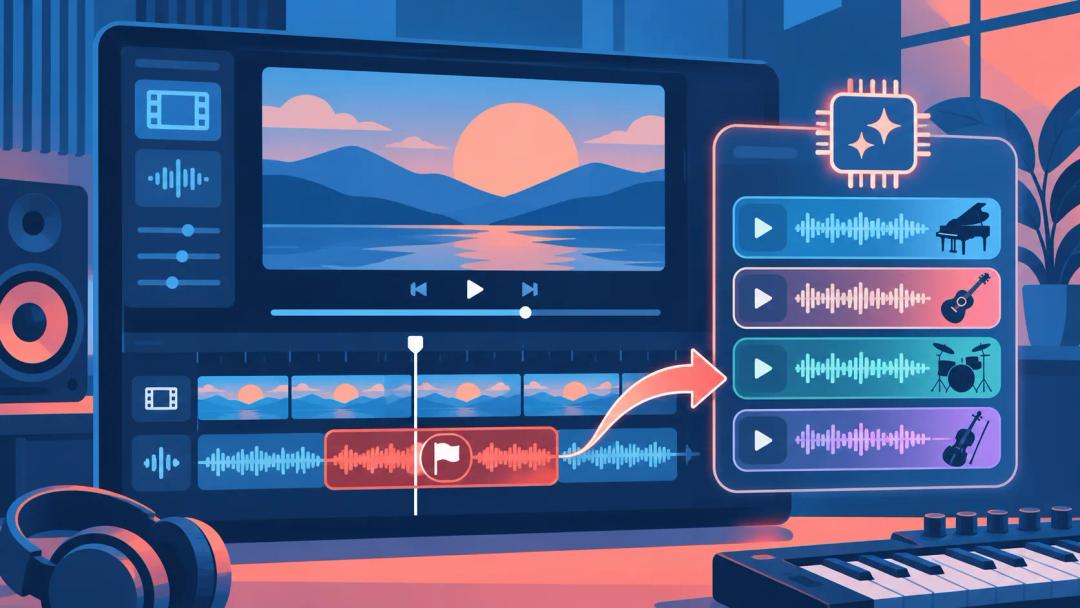
YouTube's Replace song tool can now generate AI instrumentals to swap out claimed music, and it has expanded from the U.S. to most countries outside the European Economic Area. Click Create to get four royalty-free, three-minute tracks. Once the claimed audio is fully replaced, the Content ID claim is removed automatically. It works in YouTube Studio on the web, not yet in the mobile app, and no price is listed.
Last checked: November 4, 2026. We didn't have a claimed video to try it on, so this guide follows YouTube's announcement and its Help Center instructions.
How do you replace claimed music with an AI track?
Download a copy of the video first if you want to keep the original. Since June 2025, edits saved in YouTube Studio can't be reverted.
- In YouTube Studio, open Content, find the video, click the copyright notice and choose View details.
- Find the audio claim, click Take Action, then Replace song.
- On the Suggestions tab, click Create and wait for four tracks to appear.
- Play them and hover over a title to see its licensing information. If none fit, refresh the page and click Create again for a new set.
- Click Add on the one you want. It appears as a grey box in the editor: drag it to set where it starts, drag its edges to change how much of it plays, and use the track's menu to make it louder or quieter. If the claimed part is longer than three minutes, loop the track or add it again.
- Preview the video, click Save and confirm. When processing finishes, reload the page to check that the claim is gone.

Will replacing the song remove your voice-over?
Not with the default setting. The menu on your original track has a toggle called Mute all sounds in the claimed segment, and it decides what happens to the old audio:
- Off (default): YouTube strips only the music from your original soundtrack across the whole claim. Dialogue and other sounds stay, the new track plays where you placed it, and the claim is removed even if the new track doesn't fill the whole section.
- On: YouTube removes the old music only where the new track sits. If the new track doesn't cover the entire claimed section, it turns red and the claim stays.
Leave it off unless you have a reason to change it. If you do switch it on, stretch the new track across the full claimed section before you save.
If you're choosing music for a narrated video from scratch, our AI background music guide covers how loud it should sit under speech.
What should you check before saving?
- Channel size: if your channel isn't in the YouTube Partner Program, you may not be able to save changes on a video with over 100,000 views.
- Processing time: it varies, and the Videos list shows an estimate of the time left. You can close the window, but you can't make other edits until it finishes, and viewers keep seeing the pre-edit version until then.
- Claim versus strike: Replace song only handles Content ID audio claims. A copyright strike or takedown follows a different process, which our guide to royalty-free music for YouTube explains.
When should you trim or mute instead?
Replace song is one of several ways YouTube Help lists to clear a claim without re-uploading. Pick by what the claimed part of your video needs to keep:
| Option | What it does | Use it when |
|---|---|---|
| Replace song with an AI track | Swaps the claimed music for one of four generated instrumentals | The scene needs music and you don't want to search for it |
| Replace song with an Audio Library track | Swaps it for a track you search and pick | You want a specific genre or mood, or you're in the EEA |
| Erase song | Mutes only the claimed song and keeps dialogue | Speech matters more than music. It may not work if the song is hard to separate |
| Mute all sound in the claimed segments | Silences everything in the claimed part | You want the surest fix; YouTube says it is the most likely to clear the claim |
| Trim out segment | Cuts the claimed part out of the video | The claimed section is short and the video works without it |
Can you use the AI tracks outside YouTube?
You can download them as MP3 files, but the announcement says music generated by this feature is intended solely for videos and other content you create on YouTube, under the YouTube Terms of Service. Don't plan to reuse them in a podcast, a TikTok or a client project.
For music you want to use in more places, generate it before you edit. RaoMusic makes tracks from a description or your own lyrics, with vocals or as instrumentals, under a royalty-free commercial license. That won't clear a claim on a video you've already uploaded, but it means the next video starts with music you chose.
Frequently Asked Questions
No. Replace song edits the video that is already on your channel, so it keeps the same link.
Yes. YouTube Help says that removing the claimed content also removes the restrictions the claim placed on the video, such as where it can be viewed or whether it can be monetized.
No. For now the tool only generates instrumental background music, and there is no way to type your own prompt. Refreshing the page and clicking Create again gives you a new set of four.
The AI option isn't in the app yet. YouTube Help documents Erase song and Mute all sound in the claimed segments for the app, so you can still remove a claim from your phone, just without a replacement track.
The Create button is not offered in the European Economic Area yet. You can still trim the claimed section, erase the song, or replace it with a track from the YouTube Audio Library.