
Suno MIDI upload is live in Create for Pro and Premier subscribers on desktop web. You add a .mid or .midi file and write a prompt telling Suno whether to follow the notes, develop a motif, or change the instrumentation: the MIDI supplies the notes, the prompt shapes the sound.
Cost and limits in short: Suno's feature pages list no separate MIDI-upload fee beyond the Pro or Premier subscription, and they document no file-size, duration, or quantity limit. Subscription pricing can change, so check Suno's current plans page before subscribing. This guide separates that feature from Suno Studio, explains the steps, and shows where an editor such as RaoMusic's can help before you upload.
Last checked: November 6, 2026. The steps and limits below come from Suno’s MIDI announcement and Create Help Center steps. We did not upload a MIDI file to Suno for this article, so there is no claim about a particular generated result or generation time.

How do I upload MIDI to Suno Create?
The Help Center lists MIDI upload on desktop web for Pro and Premier plans. Follow these steps:
- Open Create and stay in Simple mode.
- Click the attachment control, drag a MIDI file into the form, or choose MIDI from the plus menu.
- Check that the file ends in
.midor.midi. - Write a description of the sound you want. Include the genre, instruments, mood, and energy.
- Submit the creation.
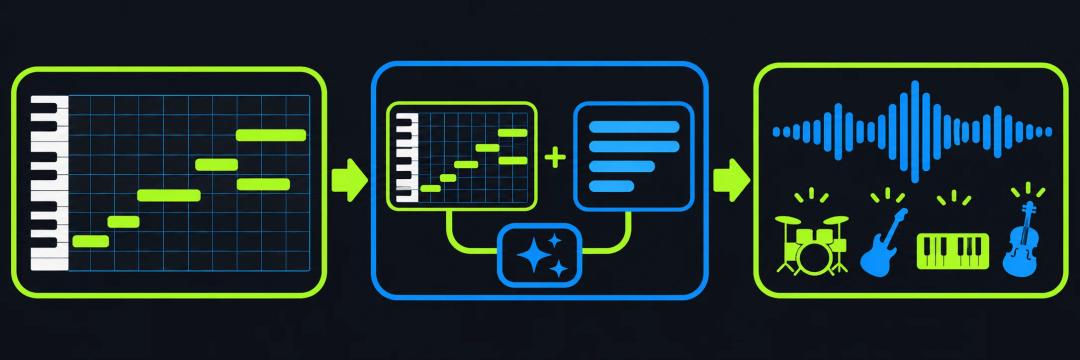
The upload gives Suno a musical starting point. Your written description tells it how to interpret that starting point. Suno's launch post says the Create workflow uses Simple Create mode with v6-wild.
What does the MIDI file control?
MIDI is a set of musical instructions rather than a recording. It can carry note choices, timing, duration, and playing intensity. That lets an existing melody, bass line, or chord idea give the generation a more concrete shape than words alone.
The text prompt still matters. Use it to specify the sonic direction, such as acoustic folk, a restrained piano arrangement, or a string quartet. You can ask Suno to follow the notes closely, develop the main melody, change the instruments, or arrange the material for an orchestra, choir, or string quartet. Treat the MIDI as the musical source and the prompt as the production brief.
What should I write in the prompt?
Start with the action you want Suno to take. For example:
- Preserve: Follow the uploaded melody closely and turn it into a warm acoustic folk song.
- Develop: Use the uploaded motif as the chorus hook, then build a fuller arrangement around it.
- Re-orchestrate: Keep the rhythm and main notes, but arrange them for a string quartet with a gentle cinematic mood.
Add the details that affect the listening experience: the main instruments, vocal or instrumental direction, mood, energy, and the kind of change you want. Keep the request concrete enough that the notes and the sound brief point in the same direction.
How is Create different from Suno Studio?
Create and Studio use MIDI for different jobs. Create turns an uploaded MIDI idea and a written description into a generated song. Studio is a browser-based workspace where you can place MIDI, WAV, and MP3 clips on a timeline, edit notes, and work with instruments.
| Workflow | Best for | What the official docs say |
|---|---|---|
| Create | Starting a generated song from a MIDI idea | Pro and Premier access; upload .mid or .midi; add a natural-language instruction |
| Studio | Editing and arranging inside a timeline | Premier access; MIDI, WAV, and MP3 clips; piano-roll and controller workflows |
| Studio MIDI extraction | Taking a part into a DAW | Turn an isolated part such as vocals, drums, or bass into MIDI; Suno lists a 10-credit extraction cost |
Suno's Studio release note describes a MIDI-to-audio transcription update. That matters when you are working inside Studio; it is separate from the later Create upload workflow. If you do not use Studio, our audio-to-MIDI guide covers other ways to turn a recorded part into MIDI.
How can I prepare a MIDI file before uploading?
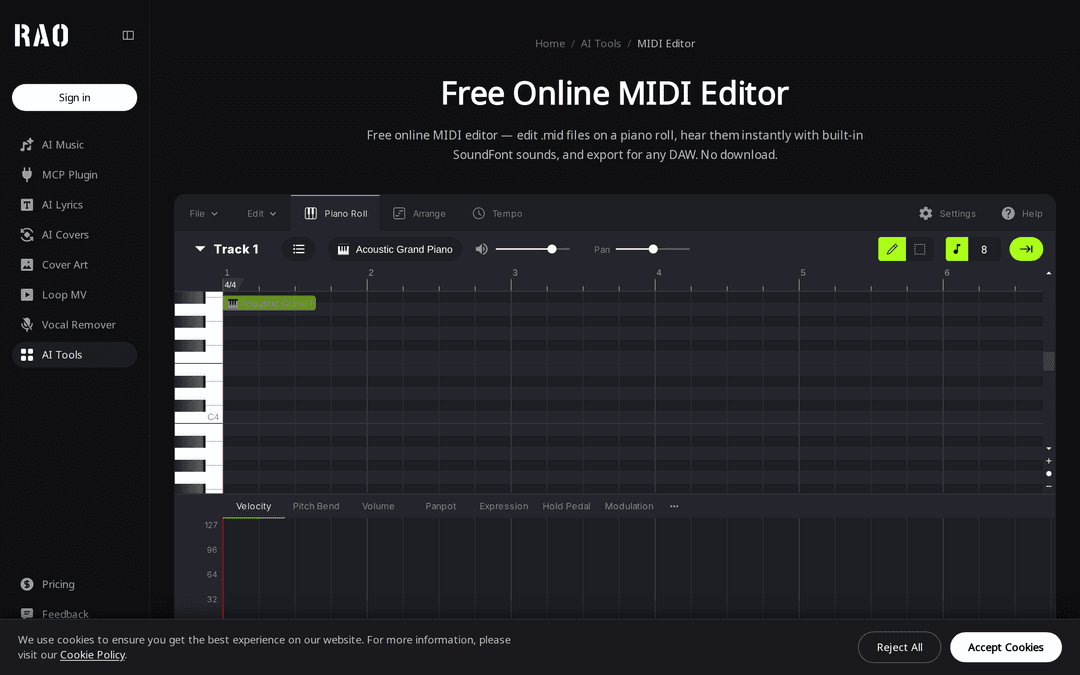
First, listen to the idea and check its structure. Remove empty bars, confirm that the main notes are on the intended track, and decide whether you want Suno to preserve the idea or reinterpret it. A piano-roll view makes misplaced notes and long gaps easier to spot.
RaoMusic's online MIDI Editor lets you inspect a file on a piano roll, hear it with built-in SoundFont sounds, and export a cleaned copy. Premier subscribers can also do this inside Suno Studio: the Help Center suggests using Studio to quantize notes, nudge them off the grid for a looser feel, or change the key and scale.
What should I know before using the feature?
- The checked Create documentation does not state a MIDI file-size, duration, or quantity limit. Those caps are unknown, so do not infer them from the missing documentation.
- At launch, MIDI works only in Simple Create mode with v6-wild. Suno says it plans to expand MIDI capabilities over time.
- MIDI has no recorded audio. The result depends on how Suno interprets the notes alongside your prompt.
- Studio has different device guidance. Suno's Help Center recommends Chrome, says Web MIDI is unavailable in Safari, and lists a minimum 768 px screen width for the Studio experience.
- Exporting MIDI from a Studio stem is a separate workflow from uploading MIDI into Create, and Suno documents that extraction as a separate paid action.
If your idea exists only as an MP3 or WAV, convert it to note data first with the audio-to-MIDI tool, then clean it up in a piano-roll editor before uploading. Neither tool is a Suno integration.
Suno MIDI Upload FAQ
No. Suno's Help Center lists MIDI upload on desktop web for Pro and Premier plans only. Free accounts and the mobile apps are not included in the launch.
Not at launch. Suno's announcement says MIDI uses Simple Create mode with v6-wild, and that it plans to expand MIDI capabilities over time.
An uploaded WAV or MP3 gives Suno recorded sound to adapt. A MIDI file contains no sound, only note and timing data, so Suno describes it as a more precise way to control which notes are played while your prompt decides the instruments.
Suno's launch post notes that a MIDI file can hold up to 16 channels, but neither the post nor the Help Center explains how Create weighs multiple tracks. If one part matters most, say so in the prompt (for example, the top-line melody), or export only that part before uploading.
Yes, in Suno Studio, which is a Premier feature. The Help Center suggests using Studio to quantize MIDI notes, shift them slightly off the grid for a more human feel, or change the key and scale.